
How to Open a Carestream CBCT Scan
Carestream (formerly Kodak) CBCT outputs standard DICOM on the patient CD. View it online in your browser — no CS 3D Imaging install.
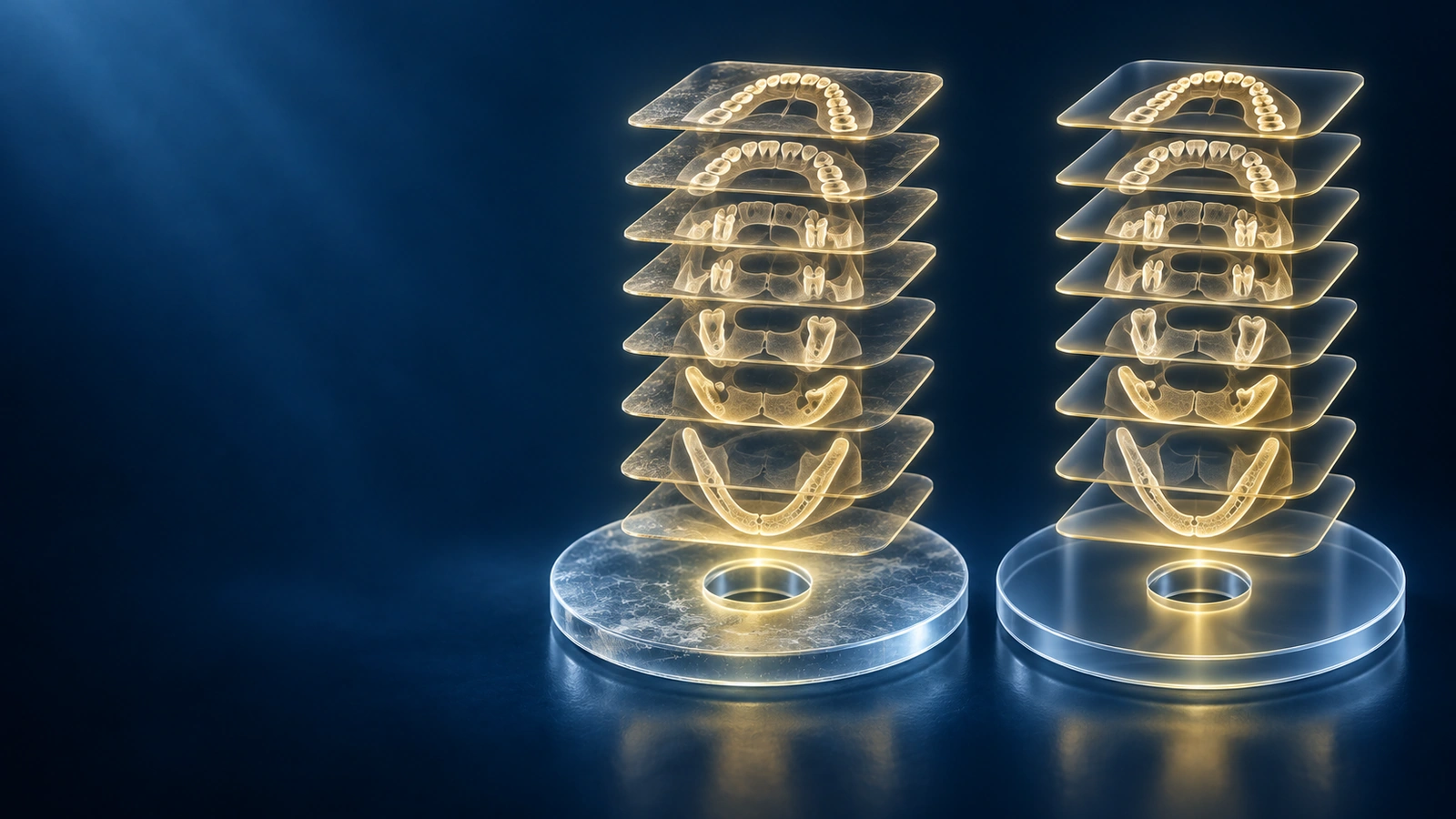
Carestream Dental — formerly the dental division of Kodak — makes a range of CBCT scanners including the CS 9300, CS 9600, and CS 8100 3D models. Because Carestream acquired Kodak's dental imaging business, older patient CDs may show the Kodak brand while newer ones say Carestream; the underlying DICOM data is identical in structure. Carestream CBCT exports standard DICOM on patient CDs, making the files readable in any compliant viewer. For a general guide covering all dental scanners, see How to Open a Dental CBCT File.
Carestream and Kodak DICOM output
Carestream CBCT scanners write standard DICOM files — one .dcm file per axial slice — using conventional transfer syntaxes that every compliant DICOM viewer can decode. Patients who received a scan before Carestream rebranded the Kodak dental line will find the same DICOM folder structure on both old Kodak-branded and new Carestream-branded discs. The scanner model name is embedded in the DICOM header tags, so you may see references to Kodak Dental Systems or Carestream Health in the metadata depending on when your scan was acquired. For viewers, this distinction does not matter: both produce the same standard DICOM output.
CS 3D Imaging Viewer alternative
Carestream's official desktop viewer for CBCT data is CS 3D Imaging, part of the CS Imaging suite. CS 3D Imaging is a Windows-only application that requires a software licence and, in clinical environments, registration against a Carestream practice account. Patients who receive a Carestream CD and try to use the bundled disc launcher often discover it requires CS 3D Imaging to be installed or prompts for an account. Our browser viewer reads the Carestream DICOM data directly from the patient CD without CS 3D Imaging, any Carestream account, or any software installation.
Folder layout on the patient CD
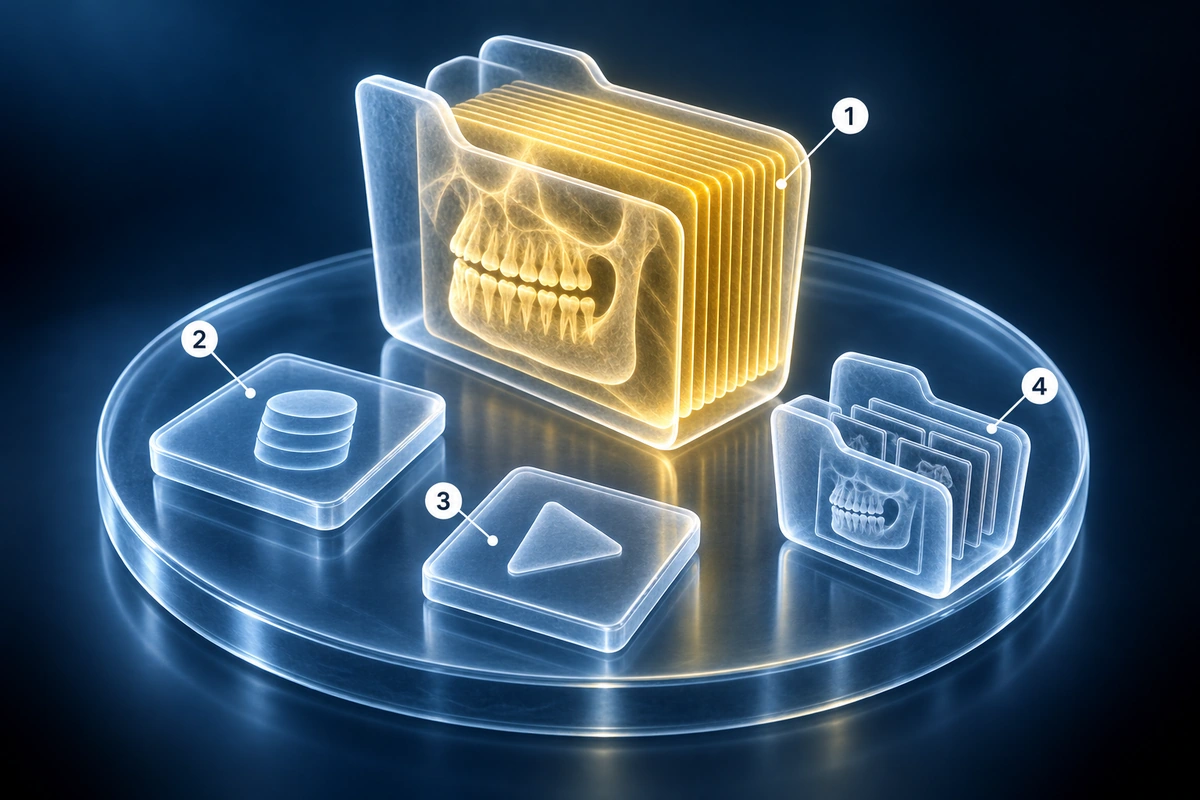
A typical Carestream patient CD has a DICOM folder in the root containing all per-slice .dcm files numbered sequentially. You may also find a DICOMDIR index file in the root and an autorun.inf file that attempts to launch the bundled CS 3D Imaging viewer on Windows. Some Carestream discs also include a JPEG preview folder. The autorun.inf and the preview folder are supplemental — the diagnostic data is entirely in the DICOM folder. Drop the DICOM folder onto our viewer and your Carestream scan will load inside your browser without any Carestream software.
Browser viewer parity
Because Carestream uses standard DICOM transfer syntaxes, opening a Carestream scan in our browser viewer gives you the same pixel-perfect image quality as CS 3D Imaging. All Carestream CBCT scanner models — CS 9300, CS 9600, CS 8100 3D, and the older Kodak 9000 3D — produce DICOM that our viewer handles without special cases. You can inspect axial, coronal, and sagittal slices, adjust window and level, and zoom to full resolution. If your Carestream scan still does not load, check the supported formats list for the full range of transfer syntaxes and container types our viewer supports.
Key Takeaways
- Carestream and Kodak dental CBCT scanners produce the same standard DICOM output — old Kodak-branded and new Carestream-branded CDs are interchangeable for viewers
- CS 3D Imaging is the vendor's official Carestream viewer but is Windows-only and requires a software licence; a browser viewer opens the same DICOM data on any platform
- Drop the DICOM folder from the Carestream disc into our viewer; the autorun.inf and DICOMDIR are supplemental and not required to open the scan
- All Carestream CS 9300, CS 9600, CS 8100 3D, and Kodak 9000 3D models produce DICOM that our browser viewer reads at full image quality without conversion
Frequently Asked Questions
Are Carestream and Kodak the same on dental CDs?
Yes. Carestream Health acquired the dental imaging division of Kodak in 2007 and rebranded the product line. Scanners sold before the acquisition carry the Kodak name in the DICOM header; scanners sold after carry the Carestream name. The DICOM folder structure and transfer syntax are identical across both eras, so any viewer — including ours — handles both without distinction.
Do I need CS 3D Imaging Software?
No. CS 3D Imaging is Carestream's clinical treatment-planning application. For simply viewing your own scan — checking implant positions, sharing images with another dentist, or getting a second opinion — a browser viewer is all you need. Open our free viewer page, drop the DICOM folder from your Carestream CD onto it, and your scan loads instantly without CS 3D Imaging installed.
Can a patient open these files themselves?
Yes. Carestream CBCT data is in standard DICOM format and patients are entitled to access their own imaging records. You do not need to be a dentist or have clinical software to open the files. Our browser viewer requires no account, no registration, and no software install — just a modern browser. Your Carestream scan data is processed entirely inside your browser tab and never uploaded to any server.
Related Articles
Stuck with a dental CBCT CD or USB you can't open? Step-by-step guide for Mac, Windows, iPhone, and Android. No software install. Covers every major dental scanner.
Learn how to understand dental CBCT views, slices, MPR planes, tooth roots, jawbone, sinuses, mandibular canal, and common report terms.
Related Conditions
Ready to analyze your imaging? Upload your MRI or X-ray for AI-powered analysis
Upload your MRI or X-ray DICOM files for private, AI-powered analysis. 4 models analyze independently — raw scan files stay in your browser.
Start AnalysisMedical Disclaimer: This page is for informational and educational purposes only. It does not constitute medical advice, diagnosis, or treatment. AI-generated analysis may contain errors. Always consult a qualified healthcare professional for medical decisions. Full Disclaimer