
How to Open a Dental CBCT File (CD or USB)
Stuck with a dental CBCT CD or USB you can't open? Step-by-step guide for Mac, Windows, iPhone, and Android. No software install. Covers every major dental scanner.
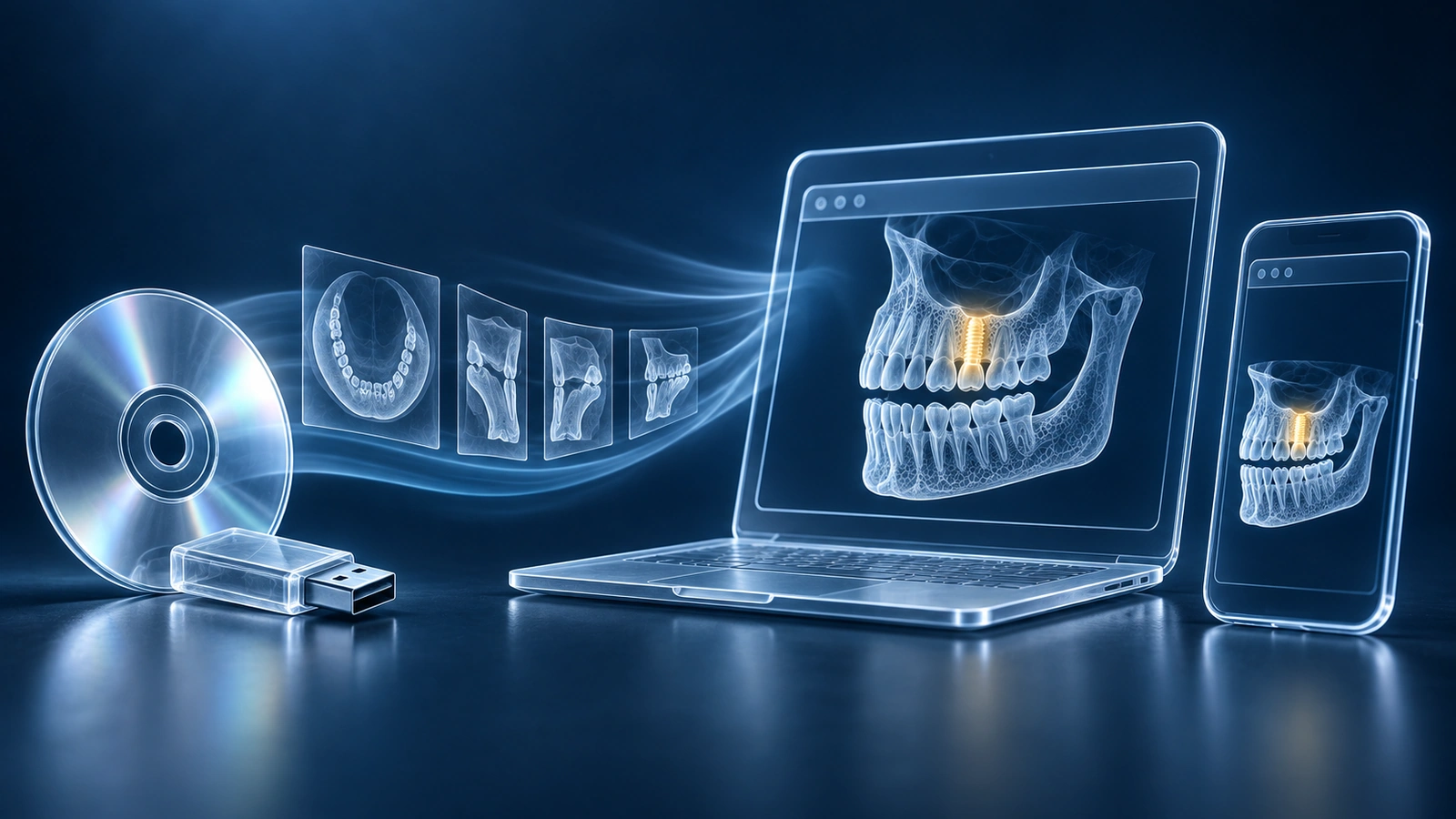
Dental CBCT (Cone-Beam CT) is a three-dimensional X-ray used by dentists, oral surgeons, and orthodontists to see teeth, roots, bone, and airways in depth. After your scan at a dental clinic or imaging center, you are typically handed a CD or USB stick containing your images. The files on that disc are in DICOM format — the global standard for medical imaging — and carry the extension .dcm. Standard photo viewers, Windows Explorer thumbnails, and macOS Preview cannot open them because DICOM files contain far more than pixels: they embed patient metadata, acquisition settings, and volumetric data that requires a dedicated DICOM viewer to decode.
This guide walks you through opening your dental CBCT files on Mac, Windows, iPhone, and Android — without installing vendor software or proprietary players. Because our viewer processes your files entirely inside your browser, your scans stay on your device and are never uploaded to any server, giving you the same privacy you would have on your own desktop computer.
What's on Your CBCT CD
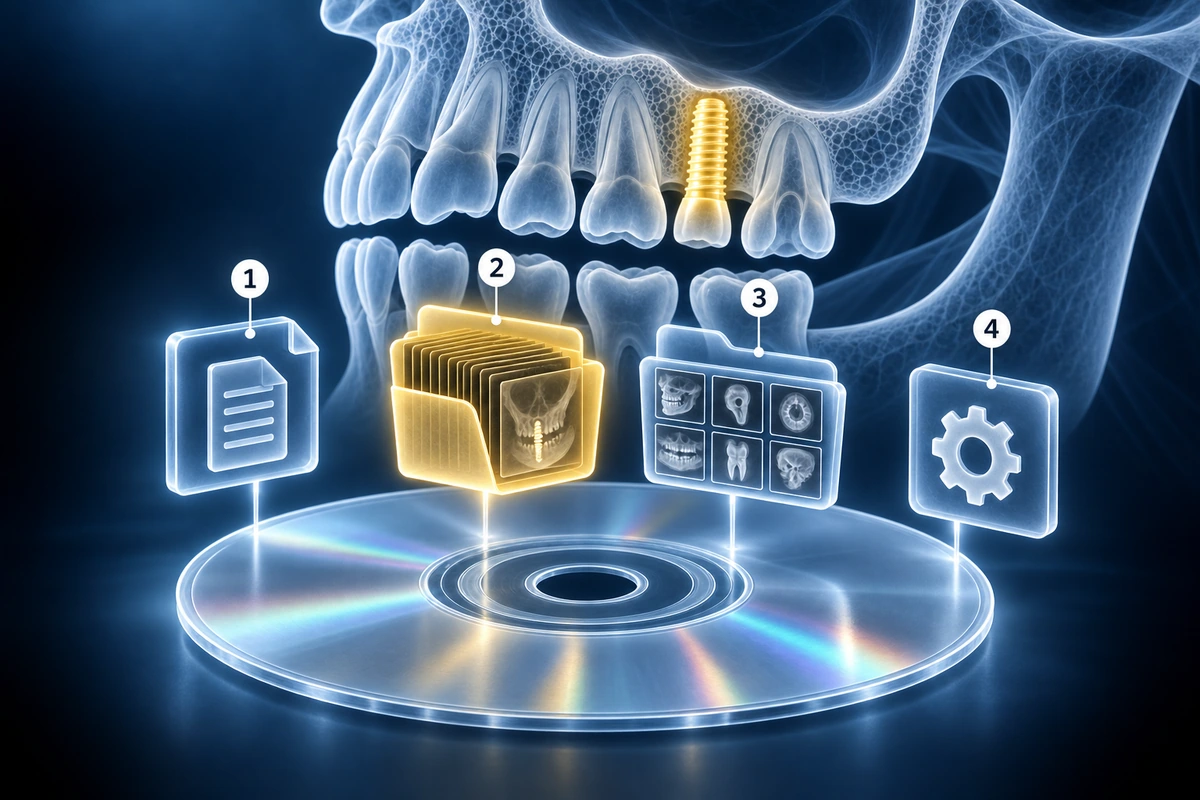
Before you try to open anything, it helps to understand the layout of a typical dental CBCT disc. In the root of the CD or USB you will usually find a file called DICOMDIR — this is an index that lists every series and image on the disc, and most DICOM viewers use it to organize your study automatically. Alongside DICOMDIR you will see one or more folders named something like IMG, DICOM, or a string of numbers. Inside those folders are the actual .dcm or .dicom files, sometimes nested one level deeper. You may also find a JPEG or PREVIEW folder containing low-resolution snapshots for a quick glance — these are not the diagnostic images. Finally, some discs include a file called CD_Viewer.exe in the root: this is a bundled Windows-only viewer. If you are on a Mac, iPhone, or Android, you can safely ignore it.
The Easiest Method: Open in Your Browser
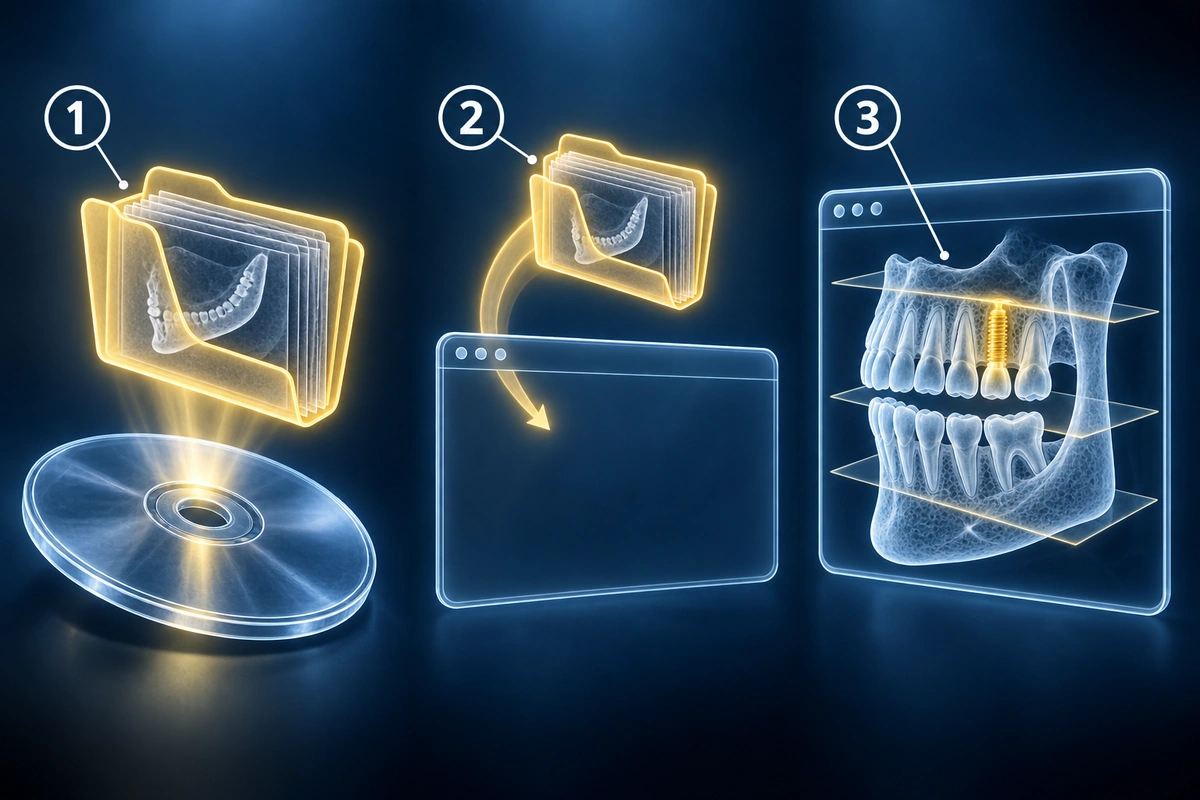
The simplest way to view your CBCT on any device is to use a browser-based DICOM viewer. You do not install anything. Open the viewer website, drag the entire DICOM folder — or drop a ZIP archive of your study — onto the page, and your scan appears. The key privacy advantage is that all parsing and rendering happens inside your browser tab: your files are never transmitted to any server, and closing the tab removes them from memory. Our free viewer works exactly this way, accepts standard DICOM folders from every major dental scanner manufacturer, and requires no account or credit card.
On Mac
On a Mac, insert the CD using an external optical drive — most modern Macs do not have a built-in drive. The disc will mount in Finder. You will see the Windows .exe viewer in the root; ignore it because it will not run on macOS. Open the DICOM or IMG folder and copy it to your Desktop or Downloads folder. Once the files are off the disc, open your browser and navigate to the free CBCT viewer. Drag the copied folder directly onto the viewer page and your scan will load in seconds. If you prefer a native Mac application, Horos is a free professional-grade DICOM viewer for macOS that supports full multi-planar reconstruction; RadiAnt also offers a Mac build. For most patients who simply want to see their images or share them with another dentist, the browser viewer is faster to set up and equally capable.
On Windows
On Windows, the bundled CD_Viewer.exe may launch automatically and show your images, but it is often slow and based on an outdated runtime. If it does not launch, asks for Java, or requires administrator rights, skip it entirely. Instead, copy only the DICOM folder from the disc to your Desktop, then open a browser and drop the copied folder onto our free CBCT viewer. For a native Windows application, MicroDicom is a free, lightweight option that handles DICOM studies from every major dental scanner. Whatever you do, avoid running executables directly from unfamiliar CDs — copy the image files to local storage first and use a trusted viewer you sourced from an official website.
On iPhone or iPad
iPhones and iPads cannot read CDs directly. If your dental clinic offers a patient portal, log in and look for an “Imaging” or “Results” section — most modern dental health systems let you download a ZIP of your CBCT files directly to your iPhone, which you can then open in the browser viewer in Safari. If you have the files on a USB-C flash drive and an iPad or iPhone 15 or later, connect the drive with a USB-C cable; the Files app will show the drive contents. Copy the DICOM folder to local storage, then open Safari, navigate to the free CBCT viewer, and select the folder. On older iPhones with a Lightning connector you will need a Lightning-to-USB adapter and a compatible flash drive to transfer the files first.
On Android
Android handles external storage well through USB OTG adapters. If your phone supports USB OTG, plug in a flash drive containing your DICOM files using a USB-C or Micro-USB adapter. Open the Files app, copy the DICOM folder to internal storage, then open Chrome or Firefox, navigate to the free CBCT viewer, and load your files. As with iPhone, the easiest path is often through your dental clinic's patient portal: download the ZIP of your study directly to your phone, extract it with a file manager app, and open the extracted folder in the browser viewer. No separate DICOM app is required.
Common Problems and Fixes
Encrypted CD: some clinics ship CDs with a password-protected viewer. The DICOM image files inside are usually not encrypted themselves — try copying the .dcm files out of the IMG or DICOM folder and loading them directly in the browser viewer. If the entire disc is encrypted, contact the clinic and ask for an unencrypted DICOM export or a digital download link.
Missing DICOMDIR: if the disc has no DICOMDIR file in its root, that is fine. Most DICOM viewers, including browser-based ones, can load individual .dcm files directly without an index. Simply select all the files inside the IMG or DICOM folder and drop them onto the viewer.
.dcm files won't open with a double-click: DICOM files are not ordinary image files. Your operating system does not know which application to use for them. You need a DICOM viewer — either browser-based or a desktop app. Double-clicking will fail until you associate the .dcm extension with a viewer.
Large ZIPs: a typical dental CBCT volume is 100–500 MB depending on field of view and voxel resolution. This is too large for standard email (most providers cap at 20–25 MB). Use Google Drive, Dropbox, or WeTransfer to share the full study with another dentist, or ask the receiving practice if they have a secure portal upload link.
Vendor-Specific Quick Links
Different dental scanner manufacturers structure their export folders differently. If you know which scanner produced your CBCT, the dedicated guides below explain the exact folder layout and any quirks to watch for when opening those files:
For the full list of file types, archives, and DICOM transfer syntaxes our viewer handles, see supported formats.
Key Takeaways
- Dental CBCT files are in DICOM format (.dcm) — standard photo viewers cannot open them; you need a dedicated DICOM viewer
- A browser-based CBCT viewer requires no installation, works on Mac, Windows, iPhone, and Android, and keeps your files on your device
- Most CBCT CDs include a DICOMDIR index file and an IMG or DICOM folder — the DICOMDIR is helpful but not required to open the scan
- The CD_Viewer.exe bundled on many CBCT discs is Windows-only; on Mac and mobile devices you must use an alternative viewer
- If your CD is encrypted or unreadable, contact the clinic for an unencrypted DICOM export or a patient portal download link
- A typical dental CBCT is 100–500 MB — too large for email; use cloud storage or a secure portal to share with another dentist
Frequently Asked Questions
Why won't my CBCT CD autoplay on my Mac?
The CD_Viewer.exe bundled on most dental CBCT discs is a Windows executable. macOS cannot run .exe files, so the disc will mount in Finder but nothing will launch automatically. Simply copy the DICOM or IMG folder from the disc to your Desktop, then open our free CBCT viewer in your browser and drag the folder onto it. No software install required.
Do I need to install dental software to view my CBCT?
No. A modern browser is all you need. Browser-based DICOM viewers parse and render CBCT volumes entirely inside the browser tab using JavaScript and WebAssembly. You do not need to install vendor software, Java, or any plugin. Just open the viewer page and drop your DICOM folder or ZIP onto it.
Can I email the CBCT to my dentist?
You can try, but a typical dental CBCT is 100–500 MB — far larger than the 20–25 MB attachment limit on most email providers. A better option is to ZIP the DICOM folder and share it via Google Drive, Dropbox, or WeTransfer, then send the link. Alternatively, ask the receiving dentist's office if they have a secure portal or imaging upload link — many practices prefer this method because it preserves full diagnostic quality.
Is my CBCT scan private if I open it online?
It depends on the viewer. Our free CBCT viewer processes your files entirely in your browser — nothing is transmitted to any server. Your scan never leaves your device. Avoid any site that asks you to upload your DICOM files to its servers unless you have reviewed its privacy policy and understand how your data is stored and who can access it.
What's the difference between a CBCT and a regular dental X-ray?
A regular dental X-ray (periapical or panoramic) is a flat 2D projection. It shows teeth and bone from one angle and compresses all depth information into a single image. A CBCT is a three-dimensional volumetric scan: it captures hundreds of X-ray frames from multiple angles and reconstructs them into a 3D volume. This allows your dentist to view axial, coronal, and sagittal slices at any position, measure bone dimensions precisely, and see structures that would be hidden or distorted on a 2D film — such as root anatomy, mandibular canal position, and sinus proximity.
Related Articles
Learn how to understand dental CBCT views, slices, MPR planes, tooth roots, jawbone, sinuses, mandibular canal, and common report terms.
Compare dental CBCT and panoramic X-ray for wisdom teeth, implants, jaw cysts, root problems, orthodontics, radiation tradeoffs, and second opinions.
Related Conditions
Ready to analyze your imaging? Upload your MRI or X-ray for AI-powered analysis
Upload your MRI or X-ray DICOM files for private, AI-powered analysis. 4 models analyze independently — raw scan files stay in your browser.
Start AnalysisMedical Disclaimer: This page is for informational and educational purposes only. It does not constitute medical advice, diagnosis, or treatment. AI-generated analysis may contain errors. Always consult a qualified healthcare professional for medical decisions. Full Disclaimer